Quick Share to Your Phone — or Any Computer on WiFi
Drop a file, scan the QR code with your phone, the file downloads. That's it. No account, no upload to "the cloud", no app to install on the receiver — anything with a browser and the same WiFi works. Send a video to your phone in seconds, share a folder with the laptop on the other side of the room, drop files onto a tablet a colleague brought to the meeting. As fast as your WiFi.
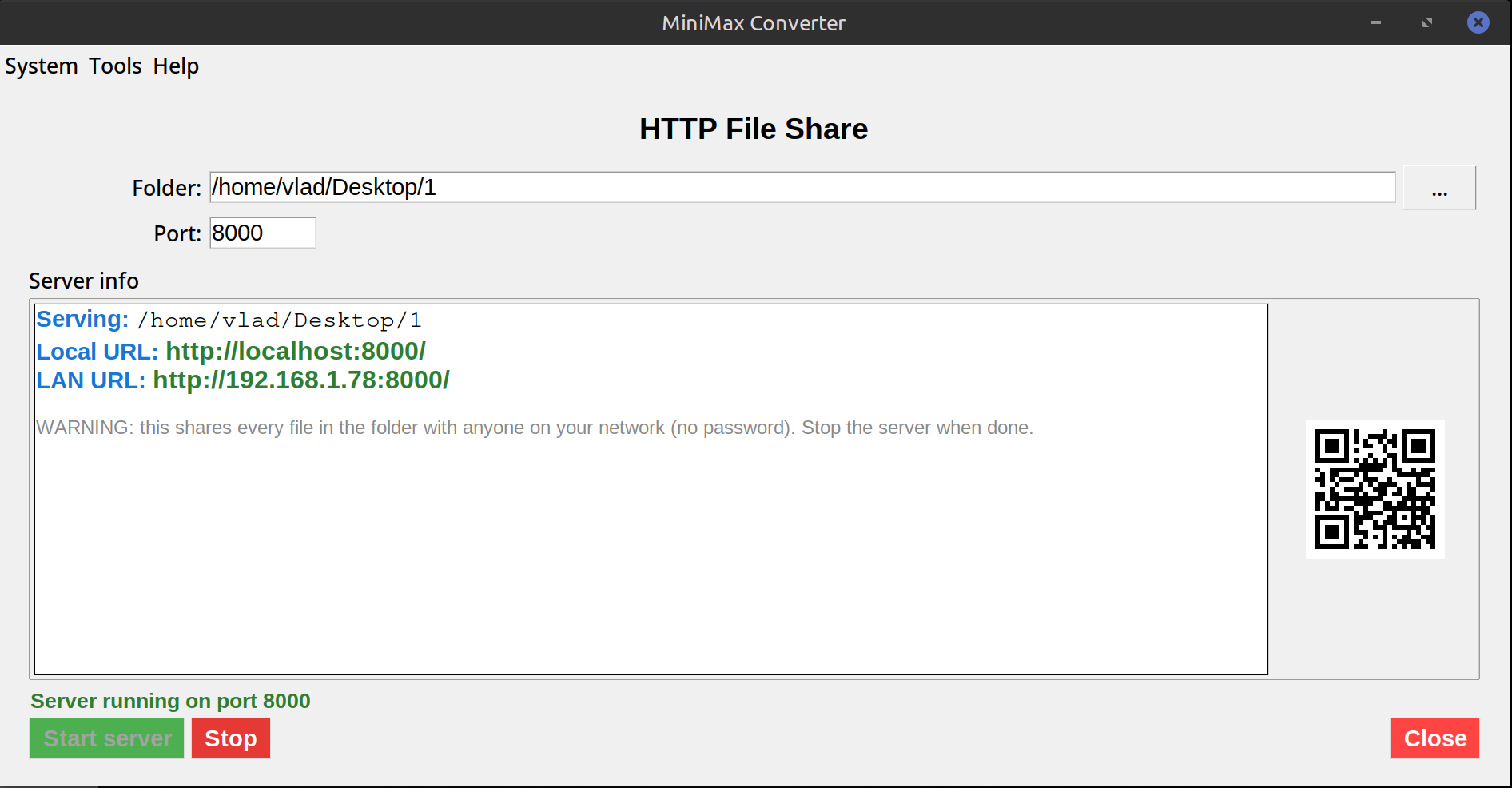
The "send it to myself in Telegram" problem
You take a screenshot on your laptop and want it on your phone. So you email it to yourself, or DM it to yourself in Telegram, or upload to Google Drive and download on the phone. Every one of those round-trips your file through someone else's server — upload, wait, share link, recipient downloads — even though the phone is sitting next to the laptop. Quick Share goes directly between the two devices over your WiFi. A 5 GB video moves in tens of seconds (limited only by your WiFi speed), never touches a server outside your network, and there's no app to install on the phone — just the camera scans the QR.
How to share a file
- Open Tools → Network → HTTP File Share.
- Drop one or more files (or a folder) onto the screen.
- Click Start. The app prints a URL (e.g.
http://192.168.1.42:8080/) and shows a QR code for it. - On the receiving device, scan the QR with the camera (iOS/Android both work natively) or type the URL into a browser. The file list opens; click to download.
- When the transfer is done, click Stop. The server shuts down — no leftover background service.
Built-in safeguards
The server only binds to your local network — it is NOT reachable from the internet unless you explicitly punch a hole in your router. Optional read-only password gate (HTTP Basic Auth) for shared spaces. Auto-stops when you close the app or pick a different tool. The QR code makes it phone-friendly — no typing 192.168.x.x addresses on a tiny keyboard.
Questions and answers
How does it compare to AirDrop or LocalSend?
AirDrop is Apple-only. LocalSend works cross-platform but needs the app installed on both ends. HTTP File Share works to any device with a browser — no app on the receiver side. Trade-off: one-direction only (the host serves; receivers download). LocalSend does both directions; this serves files out.
Can I share to my phone?
Yes — that's the most common use case. Scan the QR with iPhone or Android camera, the browser opens, click the file, it downloads to your device.
Is the file actually transferred locally?
Yes — the bytes go from your machine to the recipient's machine over your local network. They never leave the LAN unless your network is misconfigured.
What's the file size limit?
None imposed by the app. Limited only by your network speed and the receiver's storage.
Related tools
Get MiniMax Converter
Cross-platform desktop app. Linux free for non-commercial use; Windows & macOS one-time €20 license. No subscription, no telemetry, no account.