Extract, Split, and Merge PDF Pages — Offline
Pull pages 5–12 out of a 100-page contract. Split a scanned book into one-PDF-per-chapter. Merge ten invoices into one quarterly bundle. MiniMax Converter does all of this without uploading your PDF anywhere, without adding a watermark, and without limiting you to N pages per month.
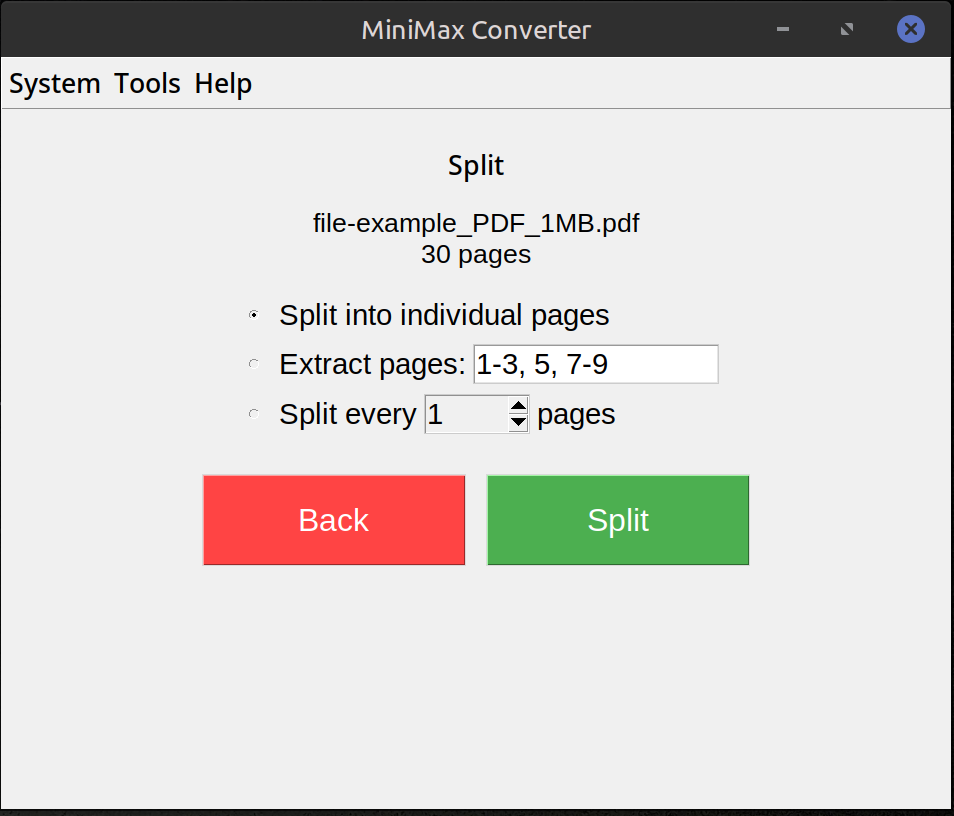
What you can do
Extract: pick specific pages (e.g. 1, 3, 5-12, 20) and save as a new PDF. Split: divide one PDF into multiple files by page count, by chapter, or one-PDF-per-page. Merge: combine multiple PDFs into a single document, in any order. All three are reachable from the PDF Tools menu inside Document More.
How to use it
- Drop one or more PDFs onto MiniMax Converter.
- From the PDF Tools menu pick Extract pages, Split, or Merge.
- Specify the page range / split rule / merge order.
- Save the result.
Bonus: page arrangement
If you want a more visual workflow — drag pages around, rotate them, delete them — drop the PDF on the app and pick Arrange pages. Each page renders as a thumbnail you can reorder, rotate, or drop into the bin before saving.
Questions and answers
Does it preserve PDF metadata + form fields?
Yes — extraction and merge preserve interactive form fields, bookmarks, and metadata. Splitting may renumber bookmarks depending on the rule.
Can I encrypt the output?
Yes — a separate Encrypt PDF tool sets a password on the output. Or use the file-encrypt tool for AES-GCM encryption of the whole file (not just PDF-level).
Why not just use the print → PDF trick?
You lose form fields, bookmarks, hyperlinks, accessibility tags, and embedded fonts in the round-trip. Native PDF page manipulation preserves everything.
Can I batch-process many PDFs?
Yes — drop a folder and the tool applies the same operation to each file.
Related tools
Get MiniMax Converter
Cross-platform desktop app. Linux free for non-commercial use; Windows & macOS one-time €20 license. No subscription, no telemetry, no account.